
Independent editorial guidance on compatibility, device settings, safety, and responsible use.
Cinema HD APK Safety: How to Check an Installer or Update
Independent editorial guidance on compatibility, device settings, safety, and responsible use.
Evaluate a Cinema HD APK by tracing where it came from and checking how the publisher delivers updates. A familiar icon, a successful installation, or a clean scan gives you only part of the picture. This independent guide covers publisher verification, integrity checks, permission prompts, and what to do when an installed app offers an unexpected update.
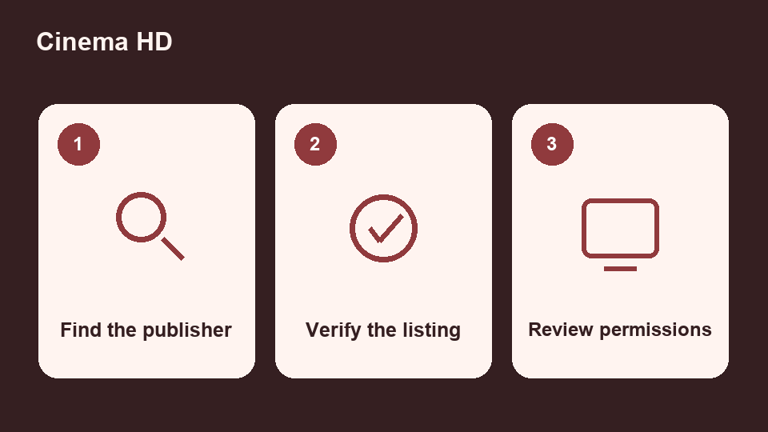
Establish where the package comes from
Begin on your device’s app store and inspect the developer identity on any listing you find. Compare it with a publisher site you can identify independently and see whether that site points back to the same listing. Check that its privacy policy names the app and publisher and provides a support contact. When the publisher distributes directly, look for documentation identifying the distribution page and the release you are reviewing.
For example, a search result for a Cinema HD download may lead to a page with a logo, a long revision history, and several download buttons. Look for a verifiable connection from the publisher to that specific page. Search position and repeated claims on other pages give you no reliable chain of custody. When you cannot establish the source, leave the file unopened and skip the update.
Compare the file with publisher-provided information
If the publisher provides a SHA-256 checksum for the exact release, calculate the checksum for the file you received and compare every character. A match tells you the bytes match the file described by that checksum. Get the expected value through a verified publisher channel, since an uploader can post a new checksum alongside a modified file.
On Android, update checks also consider the signing certificate. The signing identity generally needs to match the installed app or have an accepted key rotation. If an installer reports a conflict and the page tells you to uninstall the existing copy first, pause. Check the publisher’s support notes for a documented change. Removing the original can erase local data and turns the process into a fresh install. [Android Developers guide to app updates](https://developer.android.com/google/play/app-updates)
Read prompts before you grant access
Keep device protections enabled. On an Android device with Google Play Protect, follow a warning if it flags the package. Read any permission prompts in the context of what you asked the app to do. Access to a selected video can make sense when you tap an option to open it. A request for contacts during a simple video playback test deserves a clear explanation from the verified publisher before you proceed. [Google Play Protect guidance](https://support.google.com/android/answer/2812853)
If an update appears inside the app, close the prompt and check the original distribution channel yourself. Compare the release information there with the prompt. If you already installed a package from an uncertain source, review its permissions and remove the unverified app. Run the device’s available security scan and check for other unfamiliar apps. If you entered credentials into a suspicious screen, change the affected password on a trusted device and review active sessions through the account provider.
Check the viewing source separately
An intact installer and an identified app publisher still leave the question of who can distribute a specific film. Identify the title and year, then check the rights holder’s or distributor’s website for authorized viewing options in your country. Open the named service independently and look for the matching title and edition. The service’s checkout or playback page should make the access conditions clear.
For example, if an in-app result directs you to a sign-in page you do not recognize, close it. Verify the service through the distributor, then sign in through the service’s own website or its verified store listing. If you are testing personal media, use a short file you created. That gives you a known source for the test and avoids entering streaming credentials while evaluating basic playback.
Next step