
Independent editorial guidance on compatibility, device settings, safety, and responsible use.
Cinema HD Compatibility on Android and Fire TV
Independent editorial guidance on compatibility, device settings, safety, and responsible use.
For anyone researching Cinema HD on an Android phone, Android TV box, or Fire TV Stick, the useful starting point is the exact device model and operating system. Publisher support, installation compatibility, remote navigation, and playback all need their own check. Use this independent guide to compare requirements and test an authorized video before relying on an app for regular viewing.
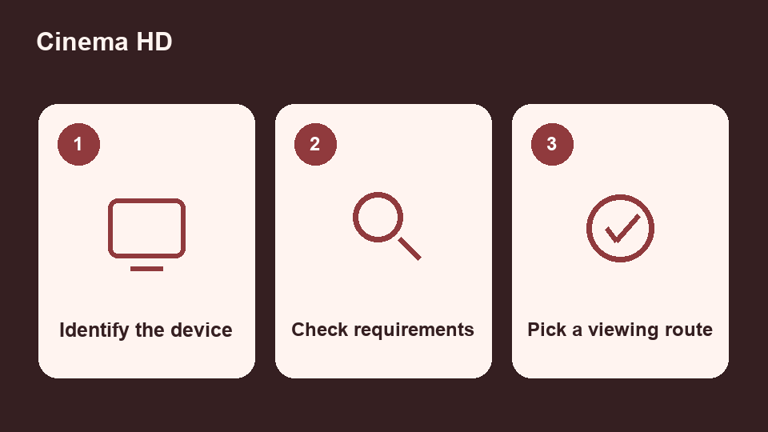
Record the model and software from the device
Open your device’s settings and look for its About or device information screen. Record the model number, software version, and available storage. Use the manufacturer’s support page to look up the model when the retail name leaves room for confusion. A family of devices can share a name across generations while running different software.
This matters especially when you search for Cinema HD on Firestick. Amazon’s device table includes Fire TV models running Android-based Fire OS and models running Vega OS. Match the model number in the table and check for explicit publisher support for that operating system. Amazon’s model table can identify the device platform, while app support needs confirmation from the app publisher. [Amazon Fire TV device identification](https://developer.amazon.com/docs/device-specs/identify-fire-tv-devices)
Compare your device with a verified listing
Look for a listing in the device’s app store or a supported-device page from the publisher. Verify the publisher by matching the developer profile, linked support site, and privacy policy. If you can independently identify the publisher’s website, follow its own link to the listing or use its published support contact to ask which channel it authorizes.
Compare any stated minimum operating system with the version you recorded. Check whether the listing explicitly covers phones, Android TV, or your Fire TV platform. If the publisher documents processor requirements, compare those with the manufacturer’s specifications too. For example, an Android TV box may meet an app’s minimum Android version while falling outside the publisher’s stated device support. Before changing settings or buying hardware, ask the verified publisher about the exact model when the listing is vague.
Test the controls you will use on the couch
A touch interface and a TV remote ask different things of an app. On a supported TV installation, try moving between rows with the directional buttons, selecting an item, and backing out to the previous screen. Check whether the on-screen focus is visible from your seat. During an authorized playback test, try pausing, seeking, and opening the subtitle or audio controls if those options are documented.
Use a short sample with an easy-to-recognize point, such as a home video where someone claps halfway through. Seek to that point, confirm that picture and sound line up, then resume with the remote. If essential controls are inaccessible, record the screen and action that caused the problem so the publisher can assess it. Leave time to test a supported alternative before a planned viewing session.
Verify that the viewing source is authorized
Check the distributor’s viewing information for the exact title, release year, and country. Open the named service through its own site or verified device-store listing, then confirm any rental, subscription, or account requirement on the title page. For a purchased film, check the provider and account named on the receipt. For personal media, use a file you made or have permission to play on the device.
A film playing on your phone gives you a starting point for comparison. If its service also supports your TV, use the same authorized account and choose the same edition to see whether the problem follows the device. Check subtitle and audio options on the TV before you settle in. If only one personal file has problems, compare its format with the specifications for the TV app and device. When contacting support, include the model, operating system, and the results of the phone and TV tests.
Next step