
Independent editorial guidance on compatibility, device settings, safety, and responsible use.
Cinema HD Playback Troubleshooting on Android and Fire TV
Independent editorial guidance on compatibility, device settings, safety, and responsible use.
When a video buffers, plays without sound, or stops at the same point, start with a test you can repeat. If you are troubleshooting Cinema HD or another player, verify the publisher and use a licensed stream or personal file you are allowed to play. Change one thing at a time so you can tell whether the problem follows the title, connection, file, or device.
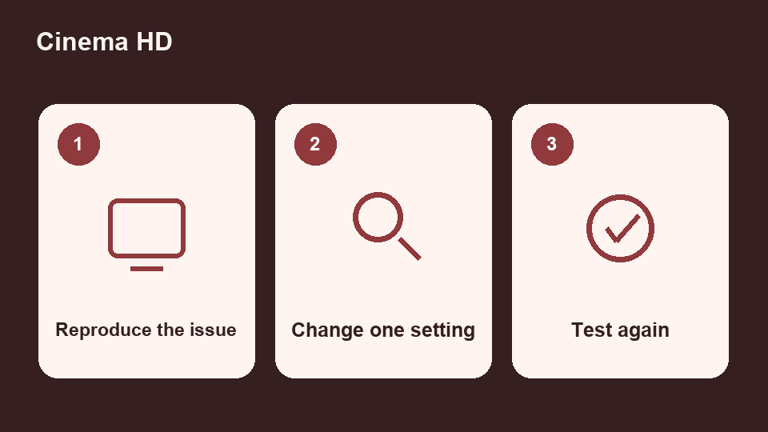
Identify the symptom and verify the source
Record the device model, operating system, app version shown on the device, and any error message. Note whether the problem begins immediately, after seeking, or at a precise point in the video. If the app closes, write down the screen and the last action you took. For an online film, add the title, year, and viewing service to your notes.
Verify the installed app’s publisher against the developer profile in the device store and the publisher’s independently identifiable support site. Check that the publisher points to the listing or names that distribution channel. For film rights, confirm the country and edition using the distributor’s viewing page or a service it identifies. A rental receipt also helps you find the provider that granted access. If a Cinema HD playback link leaves the provider unclear, use a verified viewing service for the test.
Separate buffering from a single-title problem
Try a second licensed title on the same service and device. If both titles hesitate, play a known-good local clip through a player that supports it, or test the same licensed service on another supported device. Use the same network for that first comparison. A smooth local clip alongside stuttering streams points toward a problem somewhere in the streaming path, which can include the network, service, or device app.
Make one reversible adjustment, such as pausing a large download on your network or moving a Wi-Fi device closer to the router, then replay the same section. If the service offers a playback quality control, try a lower setting and record the result. If one authorized title fails at the same timestamp across supported devices while the others play, include that timestamp in a report to the service.
Check silent playback and missing subtitles
Start with the simplest sound path available. Check mute and volume, disconnect a paired headset, or try the television’s speakers if you normally use a soundbar. Play a short known-good clip with clear speech. If the clip sounds fine but the movie is silent, check the selected audio track and try another if the service offers multiple tracks.
For subtitles, check the title details and playback menu for the language or caption track you need. Replay a line of dialogue you can identify. For a personal video with a separate subtitle file, consult the player’s documented naming, format, and folder requirements. If the same file plays with captions on one device but fails on another, give support both device models and the subtitle format.
Restart carefully and document what changed
Close and reopen the app, then restart the device if the issue persists. Check available storage and use the verified distribution channel to review applicable updates. Before resetting or reinstalling an app, find out how it handles stored settings, sign-in details, and locally saved media. Back up personal files and confirm you can sign back in to the authorized service. If an unknown pop-up offers a playback fix, check for a matching release through the verified publisher’s support channel.
When you contact support, lead with a reproducible example. You might say that a licensed film loses sound after seeking to twelve minutes on your Fire TV, while a short home video and a second title play normally through the same speakers. Include the software version and the settings you changed. Keep passwords, payment details, and private media out of the report. A few specific results give the publisher or provider enough information to decide what to test next.
Next step